
Share your screen
Choose a screen or camera on the sending device. Open Quall on the receiving device and connect them.
 Quall Studio
Your studio. On your network.
Share existing screens and cameras between phones, tablets and computers. Read your script and record on the sending device in a local creative workflow.
Free · App Store, Google Play and Microsoft Store · Mac awaiting approval
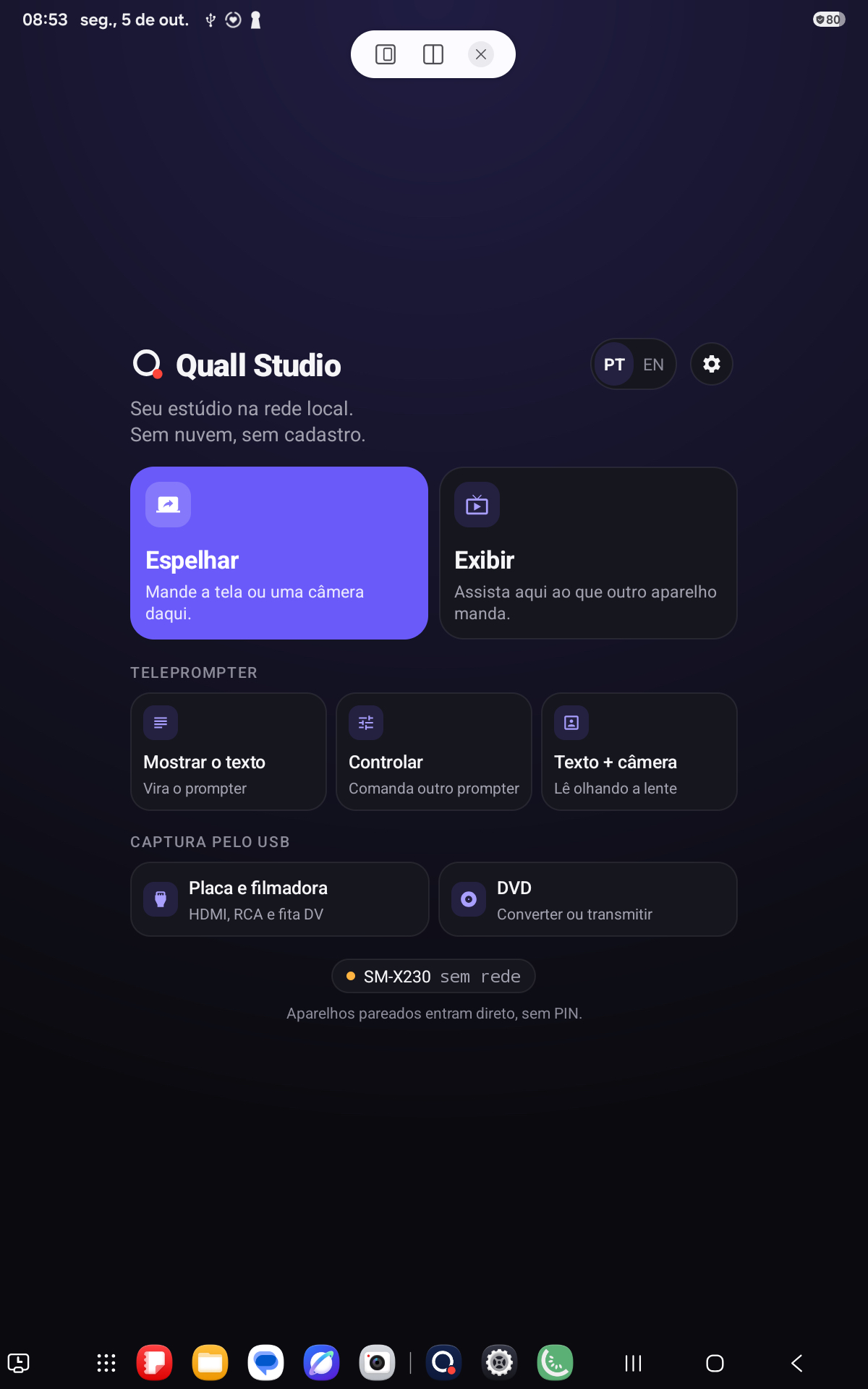
A direct connection within your local network.
From idea to image
The documentation explains requirements for each system and limitations before you begin.
Choose a screen or camera on the sending device. Open Quall on the receiving device and connect them.
Use a phone, tablet or computer camera as an image source for another device on your local network.
Use the local teleprompter with just one device. With a camera, recording on the sender saves the image without the script text.
The Android edition in preparation includes USB capture and DVD modules for ARM64 devices running Android 11 or later with compatible hardware. Validation with physical drives and USB sources is pending. See availability and limitations FFmpeg: source and licence
Inside Quall
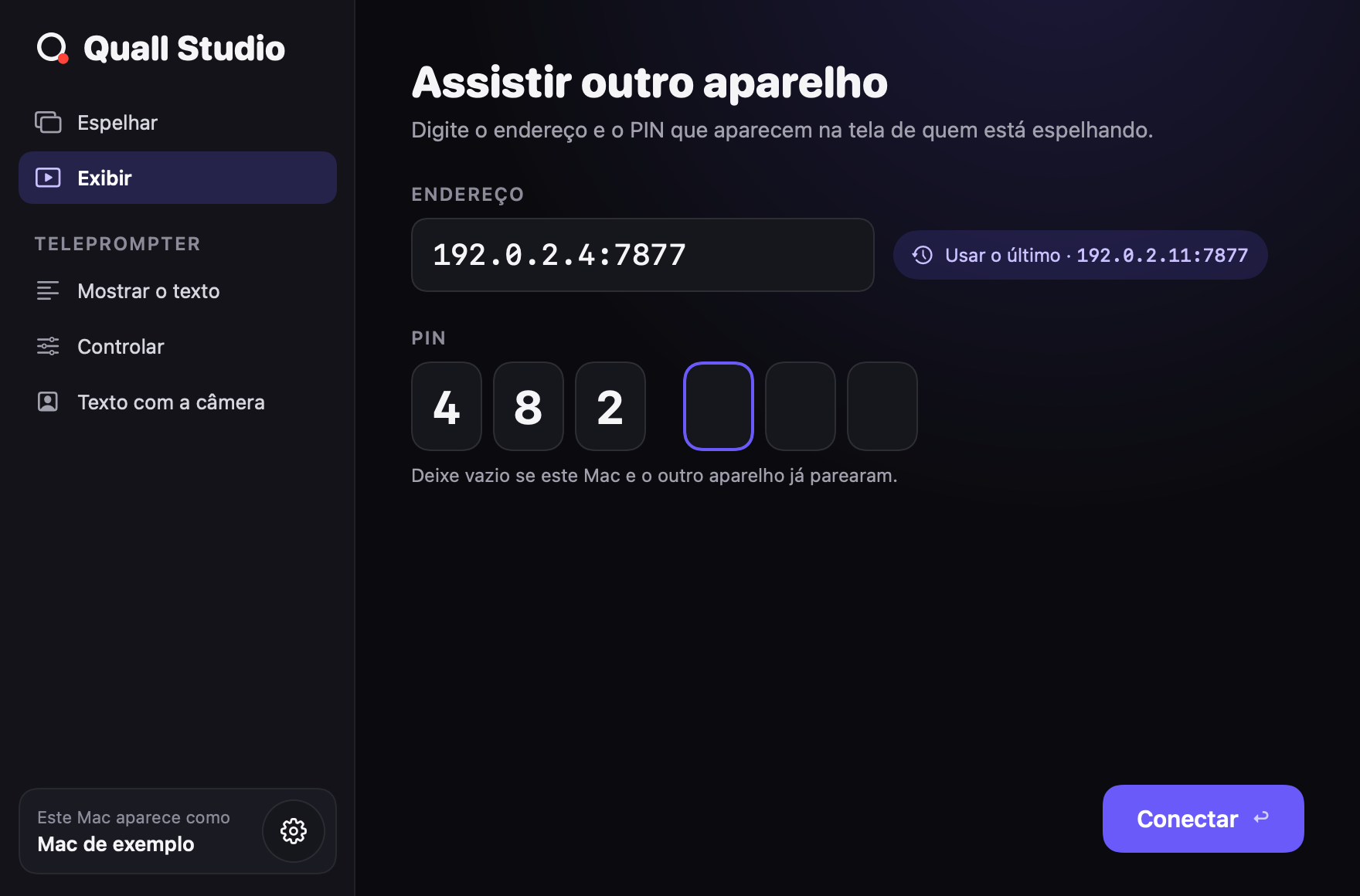
Illustration rendered from the macOS app UI with example data and a Portuguese interface. The Mac version is awaiting Mac App Store approval.
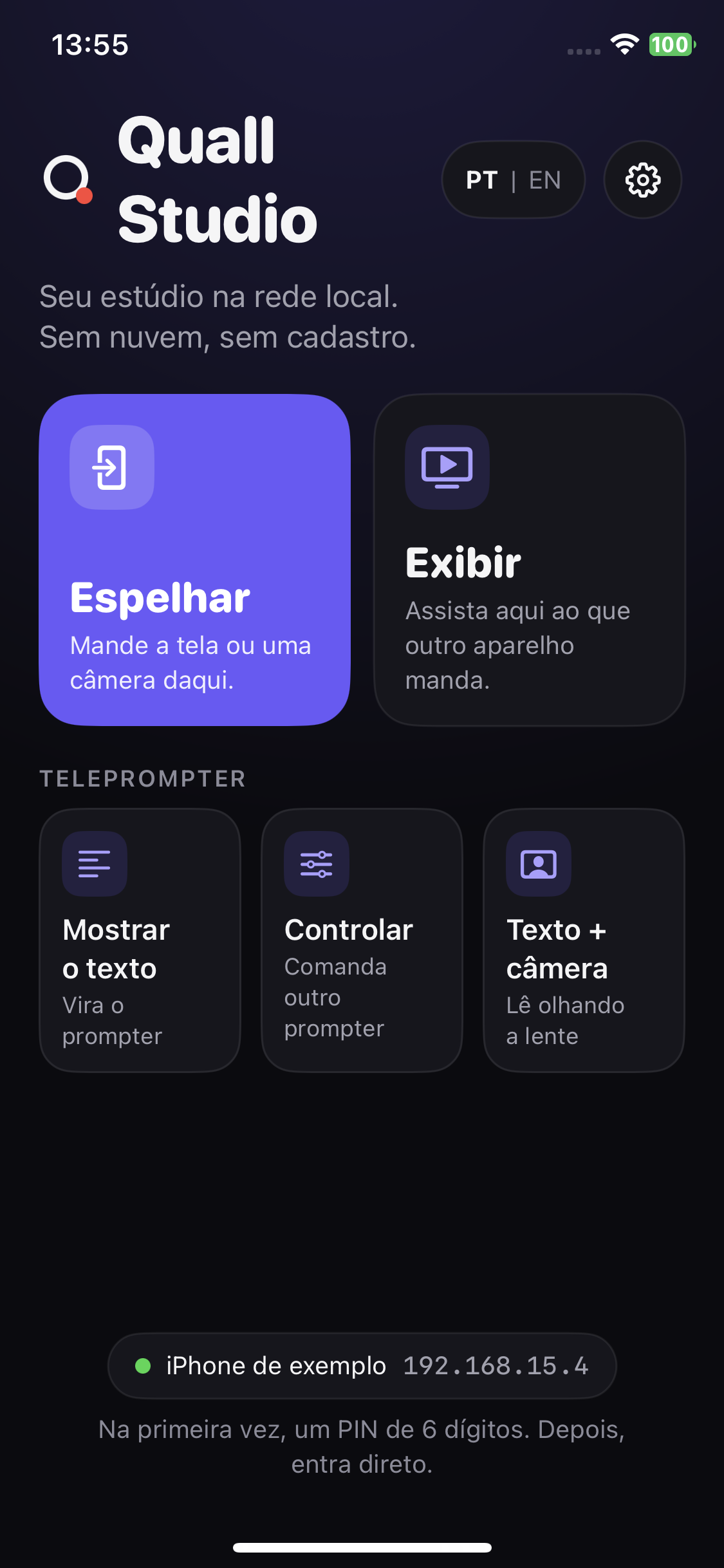
iPhone X, iOS 16.7.16. Capture of Debug app 0.1.0 (1), with a Portuguese interface and example name and address. This screen does not verify streaming.
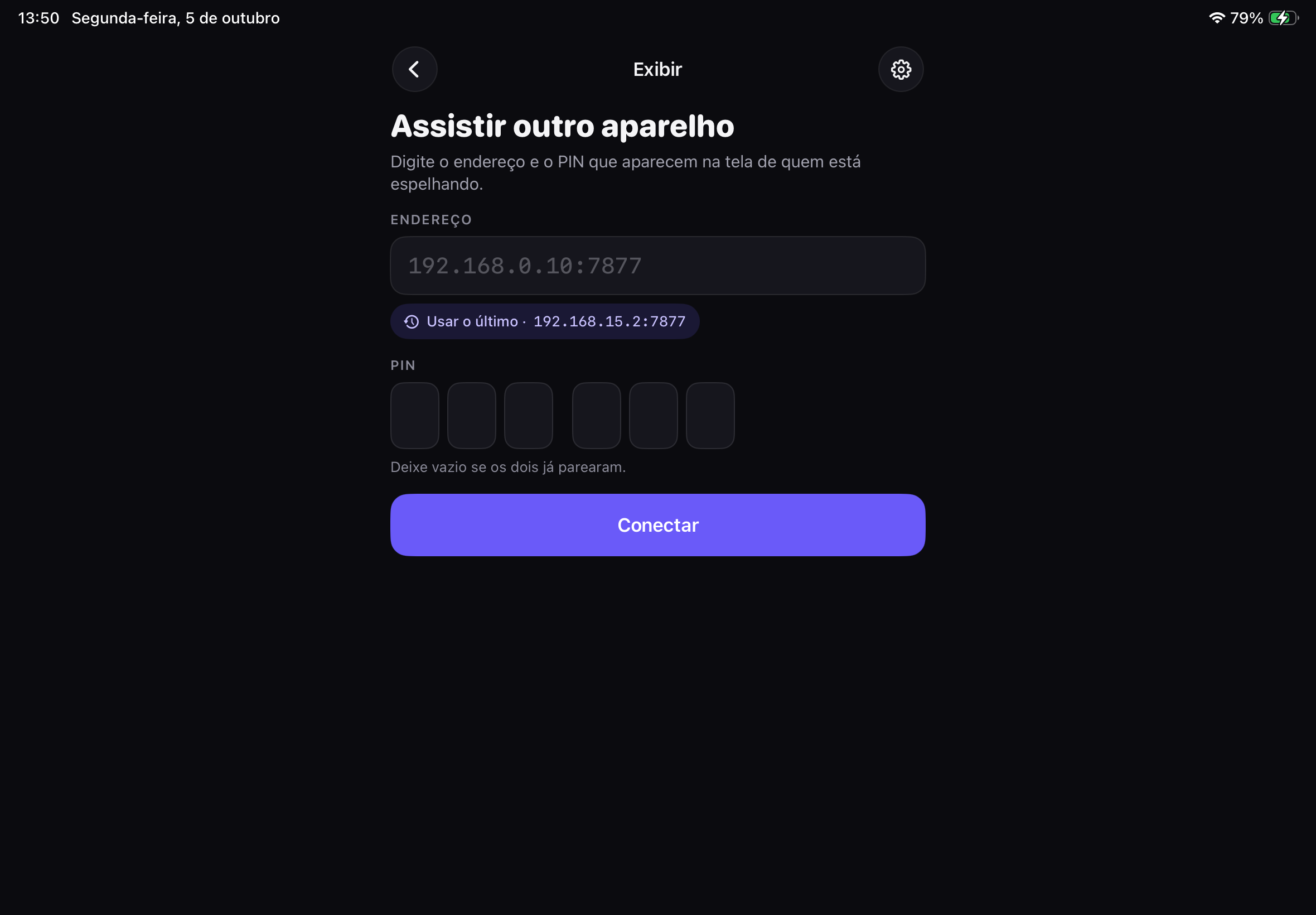
iPad A16, iPadOS 26.6.2. Capture of Debug app 0.1.0 (1), with a Portuguese interface and example addresses and history. No connection was tested for this capture.
A simple connection
The main flow runs over the local network. You choose what to share and confirm pairing on your devices.
Open the user guideOn the sending device, open Mirror and choose a screen or camera.
On the receiving device, open Receive. Use the list where available, or enter the IP:port shown on the sender.
When prompted, enter the six-digit PIN shown on the sender into the receiving device.
Quall plugin for OBS Studio
Receive a screen or camera from a Quall device as a source in OBS Studio. Plugin 1.0.29 has its own installers for Windows 11 x64 and macOS 13 or later on Apple Silicon, with pairing by 4-digit code or QR.
Installation and compatibility · Corresponding source code
Version 1.0.29 · Functional validation in progress
Virtual camera · Windows 11
A virtual camera isn't hardware: it's Quall handing Windows the video that arrives from another device over the local network, as if it were a webcam. Teams, Zoom, Google Meet and OBS Studio treat it like any other camera — no capture card, no cable and no account.
The virtual camera carries video only: the call's microphone stays the computer's. As with any webcam, one app uses the camera at a time.
Free on the official stores
Quall Studio is available on the App Store, Google Play and the Microsoft Store. The Mac version is awaiting Mac App Store approval.
Microsoft Store
Windows 11 or later. Available on the Microsoft Store; the virtual camera is a separate installer.
Download from the Microsoft StorePublished on the Microsoft Store
Mac App Store
The Mac app has been submitted to the Mac App Store and is awaiting store approval.
Awaiting Mac App Store approval
Google Play
Android phones and tablets. Available on Google Play.
Get it on Google PlayPublished on Google Play
App Store
iPhone and iPad. Available on the App Store.
Download on the App StorePublished on the App Store
This version does not include extra monitor creation (extended displays). There is no monitor driver download. Mirroring existing screens remains within Quall Studio’s scope.
Documentation and help